
Intranet Alerts
Keep staff informed with SharePoint alert banners
Important updates get buried in busy inboxes. Intranet Alerts is an employee alert system for SharePoint that puts notices on the pages your team uses. Choose who needs each update, where it appears and when it comes down.
Partner designations
- Modern Work
- Data & AI (Azure)
- Digital & App Innovation
Publish a notice once and control where it appears
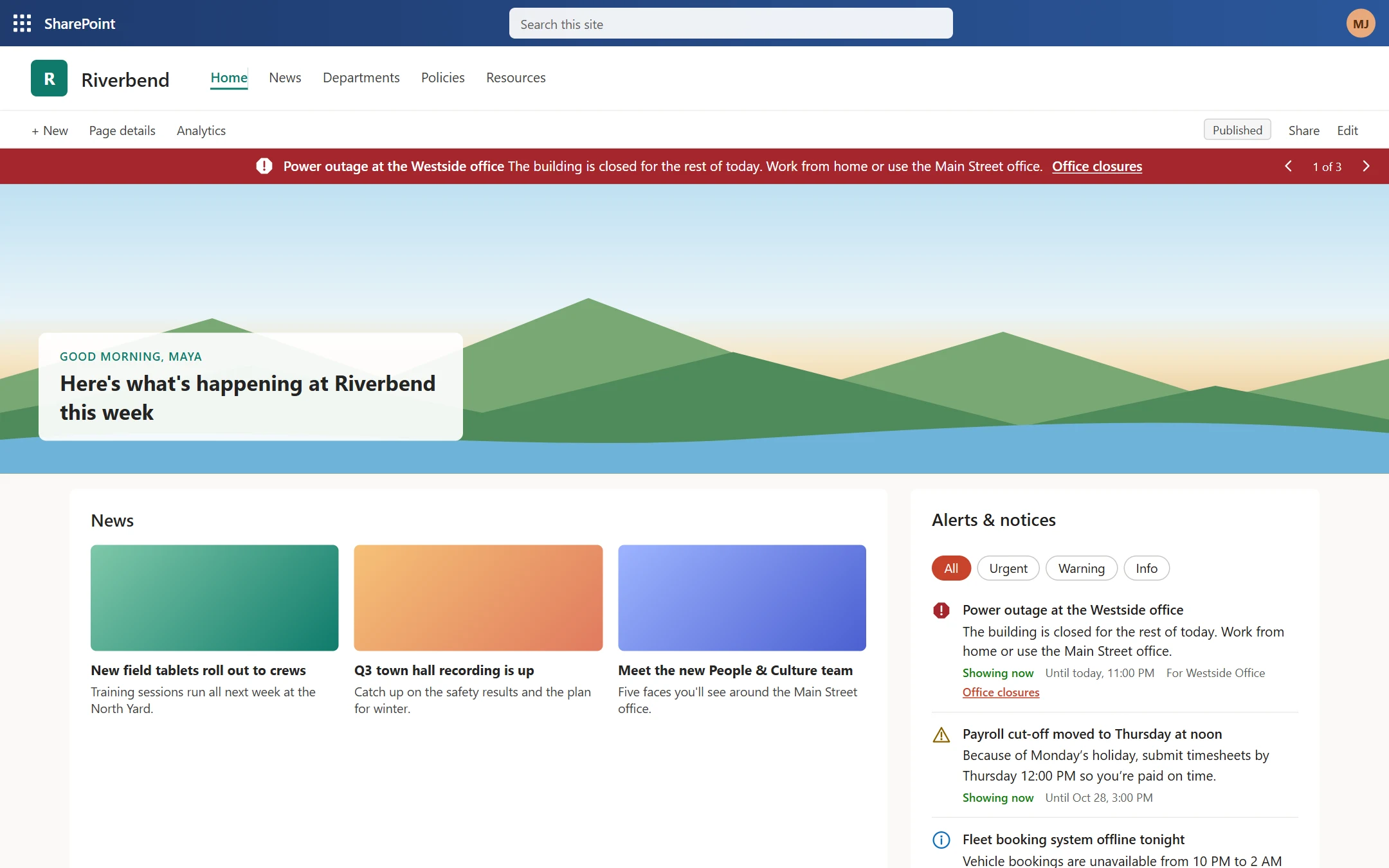
Give authorized staff a simple way to write, target and manage intranet notices. Choose the people, sites and timing, then show it as an announcement banner on the pages those staff visit. It also helps with frontline worker communication, where staff check the intranet more often than their inbox.
We check your sites and audience details, install Intranet Alerts and train your publishers. We agree the setup, optional connections, support and cost before work starts.
What’s included
- One screen to write, target and manage notices
- People, sites and timing for each alert
- Banners on the pages staff visit
- A check of your sites and audience details
- Installation in your SharePoint
- Training for your publishers


Make important notices easier to see and manage
Intranet Alerts product tour
Put updates where people already look
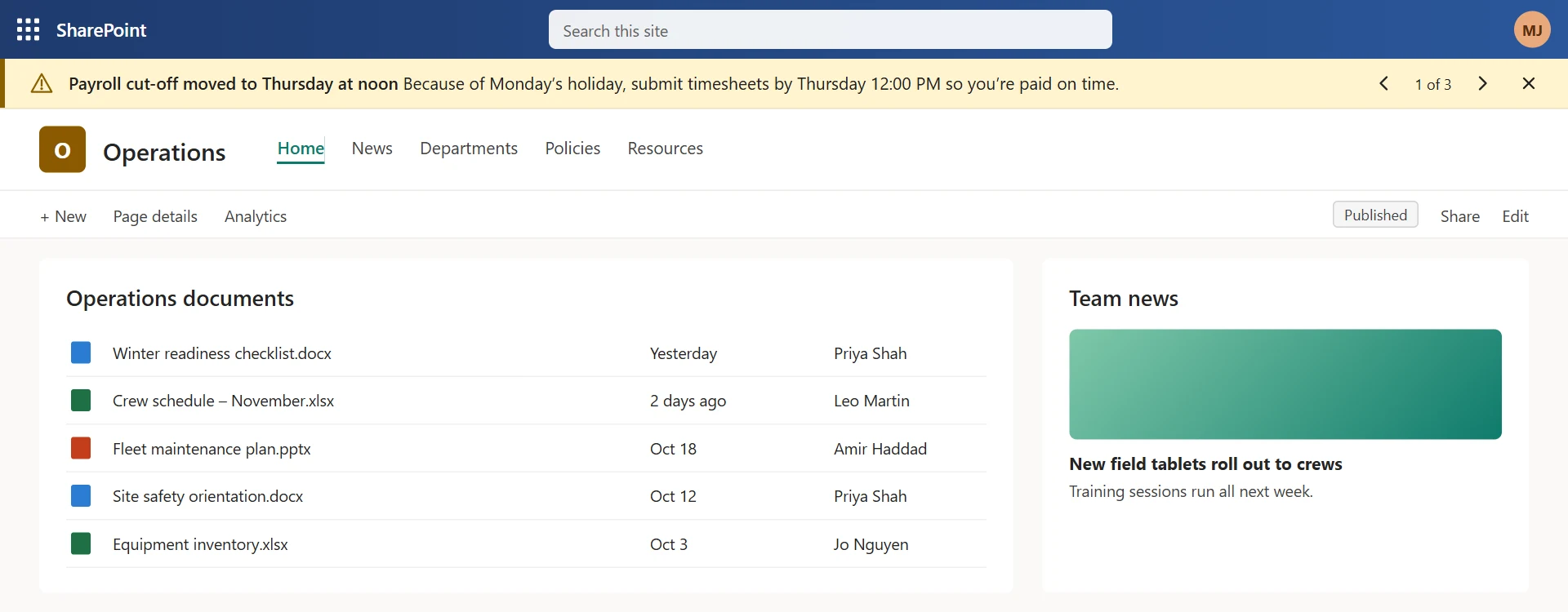
Show a clear SharePoint site banner above selected pages, beyond the intranet home page. Use the compact strip on your landing page without showing the same alert twice.
Give each team the updates that matter
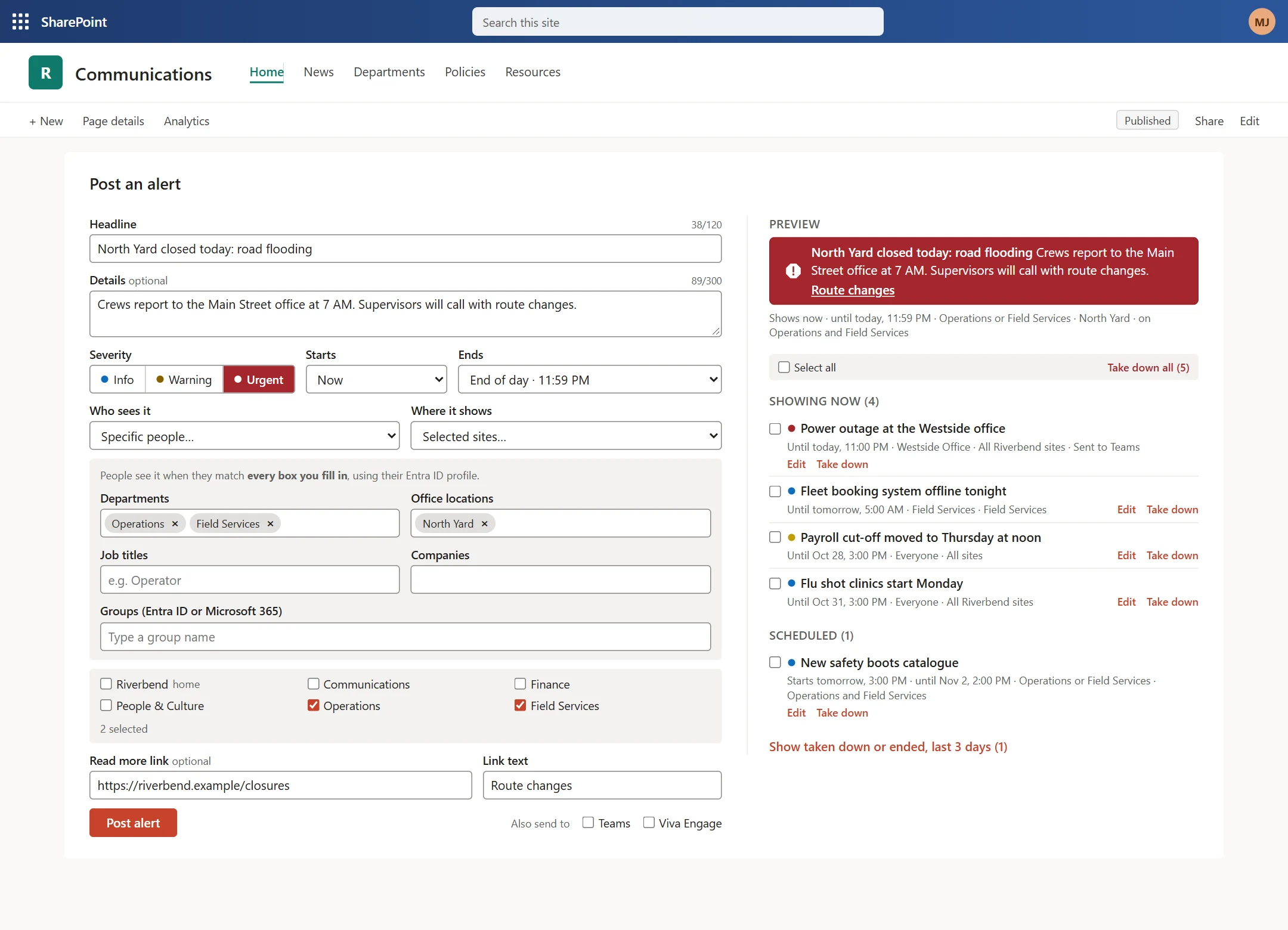
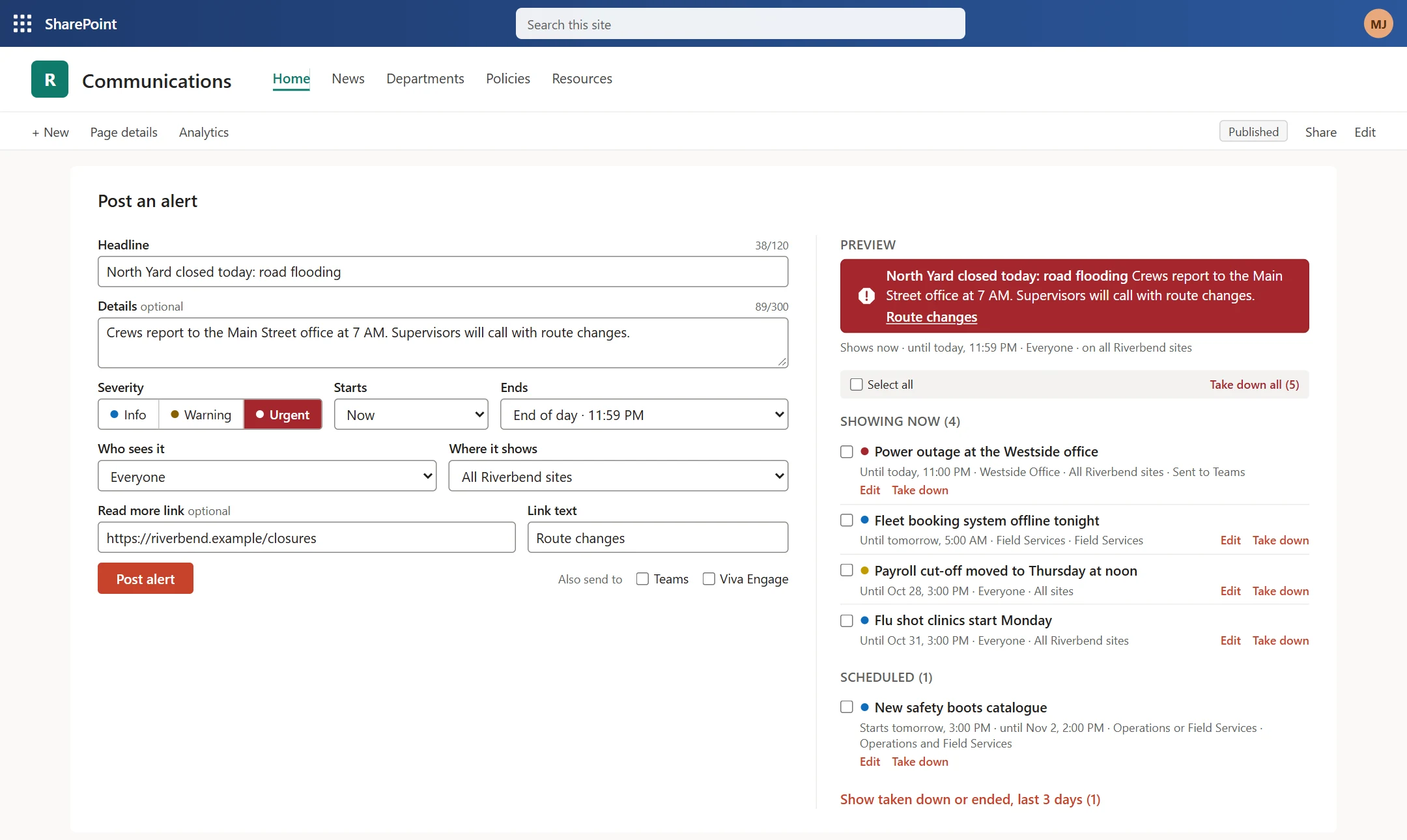
Use SharePoint audience targeting to aim a notice at the right departments, locations or groups. Tell the North Yard about a closure without adding another unrelated message for head office.
Publish changes without waiting on IT
Authorized staff can write an alert, check its live preview, choose the audience and publish from one screen. Administrators control who gets posting access.
Keep old notices from causing confusion
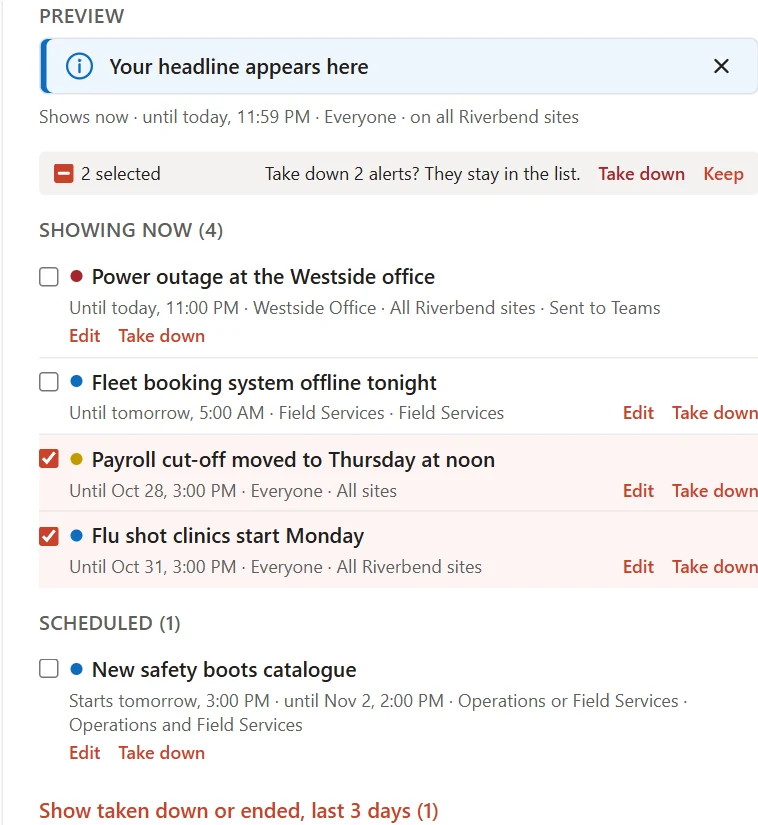
Set an end time or take an alert down when circumstances change. Notices stay in the list for catch-up and can be posted again when needed.
For the updates staff need before they act
Common uses
- Building closures and utility outages
- IT outages and maintenance
- Payroll and benefits deadlines
- Yard closures and shift changes
- Safety notices and equipment recalls
- Policy updates and town halls
Questions about Intranet Alerts
Where will people see the alerts?
On the SharePoint sites you choose, in desktop or mobile browsers. New or edited notices reach open pages within minutes. Staff still need to visit those pages, so keep other urgent and emergency communication channels in place.
How does audience targeting work?
It uses departments, locations, job titles, companies and groups from Microsoft Entra ID. Choices within one category are alternatives; selected categories combine. Targeting controls relevance, not security, so confidential information does not belong in alerts.
Can we schedule, close or remove a notice?
Set start and end times, or take a notice down yourself. People can close info and warning notices. Urgent notices stay visible until they end or are taken down. Past notices remain in the alerts list.
Where is the data stored, and who can post?
Alerts stay in a SharePoint list in your Microsoft 365. SharePoint permissions control who can publish. People who can read that list may see other alerts, even when those notices are not targeted to them.
Can alerts also go to Teams or Viva Engage?
Yes, through an optional Power Automate connection set up with you. It posts to selected channels or communities; the SharePoint banner remains a separate way to show the notice.
What permissions and licences are needed?
Your administrator approves access to staff profiles and, if used, group membership. The product uses SharePoint and Microsoft 365. Optional automation needs appropriate Power Automate rights. Product terms, setup costs and support are confirmed before you commit.
Works with
Using other staff communication tools? We can review how Intranet Alerts fits alongside them and where connections are needed.
Need a better way to reach your staff?
Tell us which updates get missed and who needs to see them. Talk through your needs with the team that would help set up your alerts.


Real people, here to help
We’ll get back to you within one business day
"*" indicates required fields
Your information is used to respond to your enquiry. See our Privacy Policy for details.